

Opera Glasses
Opera Standard skin with 32 pixel icons to match external program icons. Skin version 3• Reduced padding and minimum tab width.• Zero padding on browser skin• Some icons recreated f ...
Description
Opera Standard skin with 32 pixel icons to match external program icons.
• Reduced padding and minimum tab width.
• Zero padding on browser skin
Use with Lite Menu for Utilities Menu or add your own. Extra buttons in toolbar.
If, like me, your eyesight is less than 20/20 you may find even the 22 pixel icons in the standard skin a bit too small. Most external programs contain icons of 32 pixels — a convenient size that even I can recognise with ease, but there is a size mismatch with the icons in the standard skin. My Opera Glasses skin uses 32 pixel icons, except for mail related icons, which are still only 16 pixels.
Those with 20/20 vision can use my skin at 70% or those with less than perfect eyesight can use it at the design size of 100%. I find that 80% or 90% is a good compromise.
Updated with more External Program Icons on 22/4/2006
See my
Buttons Page
for details.
• Added Save As icon 17/5/2006
• Added more icons 1//2006
• Updated for Opera 9 (24/6/2006)
• Added icons for Explorer and FastStone (30/9/2006)
• Uploaded spacesaver_toolbar.ini
Screenshots
Comments (17 on the original page, latest shown)
Download
Works with Opera 7 or later.
About this skin
| Downloads | 47,898 |
|---|---|
| Version | 9 |
| Original page | Internet Archive |
All versions
- opera_glasses-9.zip 587 KB
Added new icons for: • Windows Explorer (Browse localhost) • FastStone Capture • FastStone Image Viewer
The Skin is very similar to the Opera Standard Compact Edition available at http://my.opera.com/community/customize/skins/info/?id=1659 But the Opera Standard Compact Edition has a bug with the URL bar were you cannot see the bottom halves of letters like p and q and characters like _ . Stick the icon size on this skin to 40% and you have a good clear and useful ski and which I think is the best on Opera and thanks Pesala for making it.
Increased minimum tab width Pagebar max button width = 120 Pagebar min button width = 40 Added New Icons for: Bit Torrent Site Preferences Widgets
Added New Icons for: Quick Preferences Cookies Language Kiosk Hand Held Updated Icon for FontCreator
Updated with two minor changes • Browser skin padding is now zero • Added "Save As" icon The zero padding makes it easier to access the scroll bar as there no gap between the scroll bar and the edge of the screen. Try this with the default skin — move your mouse quickly to the screen's edge and try to drag the scroll bar. You will find that you have to move your mouse left first to grab the scroll handle. This is due to the 1 pixel padding, which I have removed.
Recently Added Buttons (22/4/2006) Error = buttons2/error.png Help = buttons2/help.png Info = buttons2/info.png Warning = buttons2/warning.png These buttons are resized to 32 pixels from the dialogue buttons. The help button can be used to read the help files offline. See this post for details
Recently Added Buttons (17/4/2006) Foxit Reader= buttons2/foxit.png Magic Mail= buttons2/magicmail.png MP3 Tag= buttons2/mp3tag.png Notepad++= buttons2/notepad++.png Opsed= buttons2/opsed.png Quicktime Player= buttons2/quicktime.png Real Player= buttons2/realplayer.png Windows Media Player= buttons2/wmp.png Updated Buttons 7zip= buttons2/7zip.png Open Office= buttons2/openoffice.png
How, do I add the icons for other programs? Like if I wanted to add Trillian or Azerus, etc.? Please see my Opera Buttons page: Adding Icons to Skins I could add a few more popular icons, but there are just too many to add them all. Twenty-five is probably enough — maybe I will add five or ten more icons for popular programmes like Word, Excel, Photoshop, etc., if someone likes to send them to me, but I don't have those programs myself. Perhaps only web-related icons are relevant e.g. Proximitron or Dream-weaver.
How, do I add the icons for other programs? Like if I wanted to add Trillian or Azerus, etc.?
On the file drop-down list it still says "Opera 7 Preferences" That's right. It shows a different preferences dialogue to the Opera 8 preferences just above that item. One or two options were removed such as "smooth zooming of images" IIRC. Upgraders probably forgot all about it by now. Just remove the item from the [Browser File Menu] section if you don't want it.
On the file drop-down list it still says "Opera 7 Preferences"
To dude with firefox logo: Reduce the icon size to 70%.. then everything looks like it should: - The default skin with smaller tabs
What kind of skin is this!?!?! This skin is just the Opera Standard skin set to 140%. This is the worst skin EVER! The ONLY thing good about this skin is that it makes tabs the minimum width and it has more buttons for toolbars.
thanx i'll wait for more
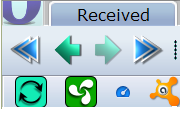
"Looks nice but why is Firefox in the screenshot?" The screen shot shows part of my main toolbar and status bar (placed at the top just for the shot). The firefox and IE icons are buttons to open the current page in Firefox or Internet Explorer respectively. New users converting to Opera from FireFox or Internet Explorer may have some favourite sites that don't work as expected in Opera. Some sites need ActiveX for example. Having a button to revert back quickly to the browser that they are accustomed to encourages them to use Opera most of the time. I usually have the Status bar turned off, but at the bottom of the screen. GestureDown, GestureUp toggles the Status Bar on/off. I use it like a Windows Taskbar to launch other programs from within the Opera interface (most useful in fullscreen mode when the Windows taskbar is not accessible with the mouse). Try my skin with my customized Toolbar and Menu .
Looks nice but why is Firefox in the screenshot?
Thanks for posting the update, Pesala This skin grows more useful as my arms grow shorter... I really appreciate the custom button icons