
CSS3 Multi-column layout
Introduction
Multiple column design that allows text to flow naturally from column to column depending on width and other parameters has proven invaluable in print design, crossing languages, cultures and a range of media. It will therefore come as no surprise to anyone reading this that such a multiple column capability is one of the most hotly requested CSS feature additions!
The Multi-column Layout Module in the CSS3 specification consists of the layout algorithm, properties to create the column structure and properties to control the flow and break of multicolumn elements. In this article, I'll give you an introduction to using the features of this module in your CSS layouts.
Building columns by creating multicol elements
Multiple columns can be made out of almost any block-level element. It's common for developers to use divs, or the article element in HTML5. I encourage readers to experiment with other elements and of course, designs, but for the purposes of this article, I'll keep the examples very direct to aid in understanding the way multicol layout works.
Since there is no specific markup element for multiple columns, CSS is used to modify a given element and turn it into a multicol element, which occurs automatically when certain column styles are set on an element.
Note: There are exceptions. A table element or any replaced block-level element cannot be made into a multicol element.
Review Listing 1, in which I've set up a header, a division, and several paragraphs of text.
<h2>Excerpt from the Saga Of Hakon Herdebreid </h2>

<div>
<p>Hakon, King Sigurd's son, was chosen chief of the troop which had
followed King Eystein, and his adherents gave him the title of king. He was ten
years old. At that time he had with him Sigurd, a son of Halvard Hauld of Reyr,
and Andreas and Onund, the sons of Simon, his foster-brothers, and many chiefs,
friends of King Sigurd and King Eystein; and they went first up to Gautland.</p>

<p>King Inge took possession of all the estates they had left behind, and
declared them banished. Thereafter King Inge went to Viken, and was sometime
also in the north of the country. Gregorius Dagson was in Konungahella, where
the danger was greatest, and had beside him a strong and handsome body of men,
with which he defended the country.</p>

<p>The summer after (A.D. 1158) Hakon came with his men, and proceeded to
Konungahella with a numerous and handsome troop. Gregorius was then in the town,
and summoned the bondes and townspeople to a great Thing, at which he desired
their aid; but he thought the people did not hear him with much favour, so he
did not much trust them.</p>
</div>
Listing 1: Some elements and content used to create a simple multicol element.
Without any author styles applied, the div and its child elements will simply remain in the normal flow. But now I'm going to turn the div into a multicol element by adding values for the following properties, along with some additional CSS to perk up the visuals a bit. Here's the CSS relevant to creating the columns:
div {column-width: 25%; column-count: 4;}column-widthsets the width of each column within the parent element. Values include all common CSS value types including pixels, ems and percentages.column-countsets the number of columns that should be displayed within the element.
You can instead choose to use the shorthand property: columns, which allows you to apply both a width and a count as I have in this rule, at the same time:
div {columns: 4 25%;}Figure 1 shows the result, as rendered by Opera 11.10. You'll notice that I've added a 2 pixel border so you can see the position of the h2 and div elements more easily.
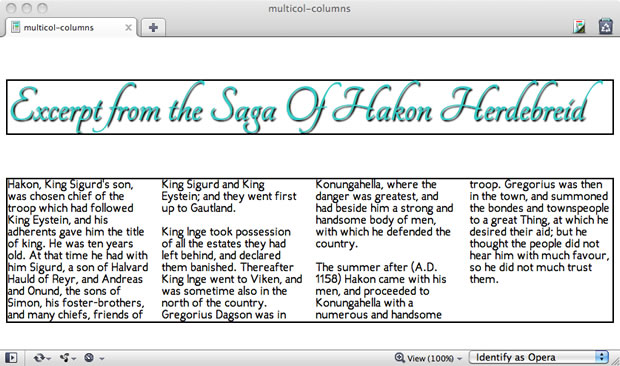
Figure 1: Creating a multicol element.
Now all the content in the div flows from column to column. Since I didn't set a width property on the element or any of its ancestors, the default width is 100% in this case. If there isn't enough room in the parent, the columns will automatically collapse down to one column.
So far I've only created a bare-bones column structure and count to demonstrate how the div in the example becomes a multicol element. We can now begin to add additional multicolumn features.
Note: columns do not establish containing blocks for elements with position: fixed or position: absolute.
Adding gaps and rules
Of course, you'll want to add gaps and rules to your columns as necessary, both for aesthetic and usability purposes. Gaps provide white space for the eyes to rest occasionally as they track content. Dividing column divisions with rules helps readers make a cognitive differentiation between the information flow.
To add gaps and rules, use the following multicol-specific properties:
column-gap: This property sets the length of the gap between columns.column-rule-color: Use any standard value for the rule color.column-rule-style: This property allows you to style rules usingborderstyles from CSS 2.1 (egdashed,dotted, etc.).column-rule-width: Sets the width of the rule between columns. The rule will appear in the middle of the gap.
Once you've set these values, you'll have a multicol element with content styled to flow between columns, gaps to add readability, and rules to provide guidance for the eye. It's up to the design-minded to add an aesthetic spark to the columns now.
The width, style and color features in column properties can also be set in that order using the CSS shorthand property column-rule, just as you would with a CSS border property:
div {column-rule: 2px solid #33c;}Here are the styles I've added:
div {column-gap: 20px; column-rule: 2px solid #33c;}Now I've got a series of distinct columns, which can be seen in Figure 2. You'll note I removed the guiding outlines for the main elements.
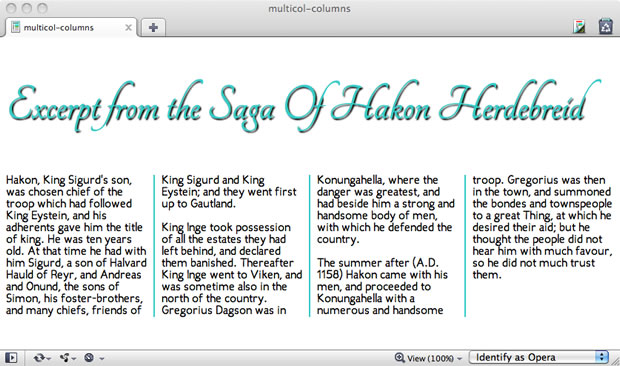
Figure 2: Adding gaps and rule styles to the multicol element to demonstrate the structure.
This is Looking a bit more stylish now!
Controlling breaks in element flow
Just as we can break pages in print for increased organization and understanding, we can break multicol elements for paged and visual media. This provides a level of control over content flow, helping us to avoid a multicol element breaking apart in odd places, such as at the point where an image or other object is placed within the multicol element.
The Multicolumn Layout Module offers us three distinct properties to handle breaks, inspired by page-break related properties (which are linked to at the end of this article), and a range of additional values (Table 1) appropriate to the columnar model:
break-before: Use this property when you'd like to break before the multicol element.break-after: Apply a break after the multicol elementbreak-inside: Apply the break inside the element.
| Value | Description | Examples |
|---|---|---|
page | Always force a page break before or after the multicol element box | {break-before: page;} |
column | Always force a page break before, after, or inside the multicol element box. | {break-after: column;} |
avoid-page | Avoid a page break before (after, inside) the multicol element box. | {break-inside: avoid-page;} |
avoid-column | Avoid a column break before (after, inside) the multicol element box. | {break-after: avoid-column;} |
Table 1: Multicolumn breaks.
Note: The breaks in multicolumn are typically used for paged media, so you are likely to mostly use them in projection, print or other modes than screen.
Spanning multicol elements
What if you'd like to have an element span a multicol element, for example if you wanted a heading or image to appear across the columns but retain the multicolumn flow? We can do just that easily by using the column-span property.
There are two values for column-span:
- Using a value of "1": The element will only span the column into which it falls.
all: This will cause the chosen element to span all columns.
In Listing 2, I've simply moved the h2 into the multicol element and added a column-span via CSS to the h2 element in order to have it span across all the columns.
<div>
<h2>Excerpt from the Saga Of Hakon Herdebreid </h2>

<p>Hakon, King Sigurd's son, was chosen chief of the troop which had
followed King Eystein, and his adherents gave him the title of king. He was ten
years old. At that time he had with him Sigurd, a son of Halvard Hauld of Reyr,
and Andreas and Onund, the sons of Simon, his foster-brothers, and many chiefs,
friends of King Sigurd and King Eystein; and they went first up to
Gautland.</p>

<p>King Inge took possession of all the estates they had left behind, and
declared them banished. Thereafter King Inge went to Viken, and was sometimes
also in the north of the country. Gregorius Dagson was in Konungahella, where
the danger was greatest, and had beside him a strong and handsome body of men,
with which he defended the country.</p>

<p>The summer after (A.D. 1158) Hakon came with his men, and proceeded to
Konungahella with a numerous and handsome troop. Gregorius was then in the town,
and summoned the bondes and townspeople to a great Thing, at which he desired
their aid; but he thought the people did not hear him with much favour, so he did
not much trust them.</p>
</div>
Listing 2: Creating a spanning element in multicol layout
Once you've applied a column-span to an element, that element then becomes what is referred to as a spanning element. You can see the effect in Figure 3.
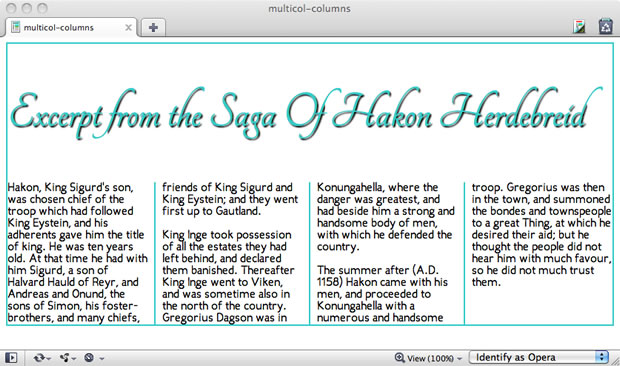
Figure 3: Creating a spanning element within a multicol element. I've added a border to the h2 so you can see how the span is now in the multicol element, and crosses all rows of the element.
In the example shown in Figure 4, I've used the "1" value for column-span, so instead of spanning all the columns, the heading only spans one column. I've also reduced the secondary heading's font size so it fits aesthetically into the first column, and added a bit of padding so as to provide white space above the multicol element box.
Figure 4: Creating a spanning element with a column-span value of 1.
Spanning using the "1" value is directly related to where the element being spanned will fall in the HTML source. If you're having trouble getting an element to span within a multicol element, move the spanning element around in the HTML source to find the best look with the cleanest markup possible.
Now comes the fun part
Armed with this article, your favourite editor and Opera 11.10 (and beyond), you can begin experimenting with Multi-column layout. You could conceivably create a layout combining multiple columns on the body, floated elements within the columns or even positioned elements. You can play around with spanning elements, using background images and transparency, and controlling content flow.
I encourage you to "just have fun with it," but I also want to add that multi-column layout, while widespread in print, is a new feature for Web developers and designers. As such, its uses and best practices for accessibility, usability, cross media and cross-browser interoperability are still immature. What's more, these are critical issues that cannot be addressed effectively in theory, so it is up to us to take this emerging layout feature and add it to our toolbox with care, thought and most important, creativity!
Demos and further reading
- David Storey demos a print-inspired layout including a spanning element.
- Zi Bin Cheah offers up some fun with CSS3 including multicol for your enjoyment
- Vadim Makeev has created a fine newspaper-style multicol example to inspire you
- Opera's documentation on its implementation of the Multi-column Layout Module
- The Multi-column Layout Module Specification (at W3C)
About this article
| Published in | Dev.Opera |
|---|---|
| Date | March 17, 2011 |
| Author | Molly E. Holzschlag |
| Tags | multiple column, css3, multi-column, layout, css |
| Original | Internet Archive |