
Introducing the HTML5 History API
Introduction
Before the advent of HTML5, one thing that we — as web developers — were not able to control and manipulate is the session history of a particular browsing context. Not without incurring page reloads or relying on location.hash workarounds. This is all set to change however: the HTML5 history API provides a means to perform tasks such as moving forward and backward in the session history, adding new entries into the history, and so on. In this article we'll look at the API's basic syntax along with a simple example to show you what's possible.
Opera 11.50 and later support the complete API, including the pushState() and replaceState() methods, the history.state object, and the popstate event.
Basic concepts and syntax
The History API relies on a single DOM interface — the History object. There is a unique History object defined for each tab, accessed through the history attribute of the Window interface. This can be manipulated using JavaScript along with some special methods. To relate this to the actual pages in your session history, each Document object is associated with a unique instance of the tab's History object (they all model the same underlying session history).
History objects represent each tab's session history as a flat, comma-separated list of session history entries. Each session history entry consists of a URL or a state object (or both), and in addition can have a title, a Document object, form data, a scroll position, and other information associated with it.
The basic methods of the history object are:
window.history.length: Returns the number of entries in the joint session history.window.history.state: Returns the current state object.window.history.go(n): Goes backwards or forwards by the specified number of steps in the joint session history. If the value you specify is zero, it will reload the current page. If it would cause the target position to be outside the available range of the session history, then nothing happens.window.history.back(): Goes backwards by one step in the joint session history. If there is no previous page to go to, it does nothing.window.history.forward(): Goes forwards by one step in the joint session history. If there is no next page to go to, it does nothing.window.history.pushState(data, title [, url]): Pushes the data specified in the arguments onto the session history, with the given title and URL (the URL is optional).window.history.replaceState(data, title [, url]): Updates the current entry in the session history, with the given data, title and URL (the URL is optional).
For example, to navigate backwards by two history session entries, the following code can be used:
history.go(-2)To add history entries with history.pushState, we'd do something like this:
history.pushState({foo: 'bar'}, 'Title', '/baz.html')Currently the 2nd argument of pushState and replaceState — the title of the history entry — isn't used in Opera's implementation, but may be one day.
To replace a history entry using history.replaceState, we would do this:
history.replaceState({foo: 'bat'}, 'New Title')The (optional) state object argument for pushState and replaceState can then be accessed in history.state.
A real example
Now we've seen the basics, lets look at a real example. This particular example is a web-based file explorer to help you find a URI of a particular image(view the example running live), with a simple JavaScript-based expanding/collapsing folder structure. When you select a file in the folder, the image is dynamically updated on the screen.
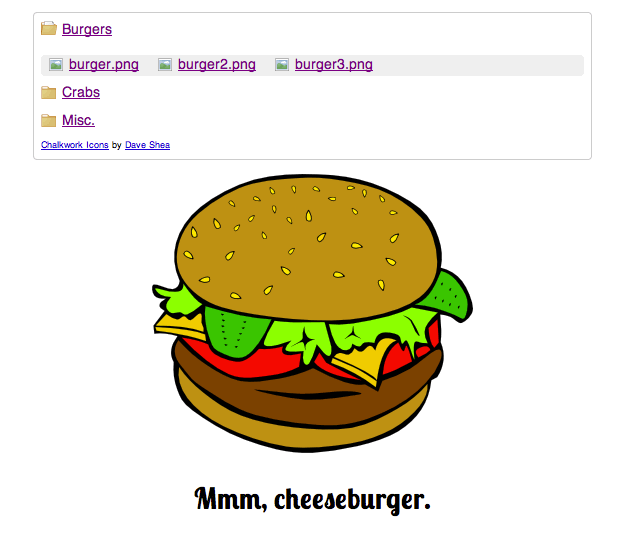
We are using custom data-* attributes to store each image's caption, and then using the dataset property to access these and print them underneath their respective images:
<li class="photo">
  <a href="crab2.png" data-note="Grey crab!">crab2.png</a>
</li>
To make things snappier, the images are all preloaded and the src is dynamically updated, so that you can load different ones without incurring expensive page reloads. This however creates a problem — it breaks the back button, so you can't navigate between different images by moving backwards (or forwards) in the history.
HTML5 history to the rescue! Every time a file is selected, a new history entry is written and the document's location is updated with the image's unique URL. This means that we are still able to use the back button to go between different images, as well as bookmark or link directly to them.
Walking through the code
The HTML is pretty self-explanatory — two <div>s sat next to one another, the left one containing the folder structure inside nested lists, and the right one providing a space to display the pictures. The dynamic functionality is all controlled via the linked JavaScript file, app.js. Apart from images and CSS, the demo relies on a single constructor function, FilePreview. We'll only highlight relevant portions here, but the code is quite short (only 80 lines) and we encourage you to have a look at it all.
In the bindEvents method, we set up event handlers for the popstate event on the document, as that will allow the application to know that the history has been navigated and to update the page accordingly.
window.addEventListener('popstate', function(e){
  self.loadImage(e.state.path, e.state.note);
}, false);
Note that the event object that gets passed into the listener has a state property which corresponds to the state argument (if any) of the pushState or replaceState method call of the current history entry.
We also listen for the click event on the <div> holding our file navigation, using event delegation to know if we should open or close a folder, or load a new image into the page (which results in a history entry being added). By inspecting the className of the parent element of the link that was clicked (with the classList API) we can find out what it is, and act accordingly:
- If it's a folder we open or close it.
- If it's a photo we load the image and update the history accordingly.
dir.addEventListener('click', function(e){
  e.preventDefault();
  var f = e.target;

  if (f.parentNode.classList.contains('folder')) {
    self.toggleFolders(f);
  }

  else if (f.parentNode.classList.contains('photo')){
    note = f.dataset ? f.dataset.note : f.getAttribute('data-note');

    self.loadImage(f.textContent, note);
    history.pushState({note: note, path:f.textContent}, '', f.textContent);
  }
}, false);
The actual method that changes the image and updates the caption is pretty self-explanatory:
loadImage: function(path, note){
    img.src = path;
    h2.textContent = note;
}
Put it all together and we have a simple file-browsing app that demonstrates how to use some of the additions to the History interface, namely pushState to add entries to the browsing context's history and the popstate event to react to state changes. What's more, each file that has been navigated to can be accessed later at its real URL.
About this article
| Published in | Dev.Opera |
|---|---|
| Date | June 28, 2011 |
| Author | Mike Taylor, Chris Mills |
| Tags | API, history, html5, javascript |
| Original | Internet Archive |