
Opera TV Emulator: Getting started
- Installation & launch
- Using the Opera TV Emulator
- Developing web projects with the Opera TV Emulator
- Supported media formats
Installation & launch
The Opera TV Emulator is provided via a Linux system image that should be launched using a VirtualBox virtual machine. This ensures a test environment for web developers that is as close to a real device system as possible. VirtualBox works on the most common operating systems, such as Windows, Linux and Mac OS X.
Installation
- Download and install the most recent Virtual Box package for your OS version from the VirtualBox website. For help with installation, see the VirtualBox user manual.
- Extract the TV Emulator Virtual Box image package to any folder you prefer to use as a virtual images store.
- Double-click on the TVEmulator.vbox file - the virtual machine should be automatically installed in the Virtual Box application.
You can also install the image from within the Virtual Box application. Just open the Virtual Box and from the Machine menu, choose Add and open the TVEmulator.vbox file. You can also use the shortcut Ctrl+a.
Launch
There are two ways to launch the Opera TV Emulator; you can double-click the TVEmulator.vbox file, or you can open the Virtual Box application, select the TV Emulator machine, and press Start.
If you plan to use the Opera TV Emulator regularly and want a quick way to launch it, you can create a shortcut to your TVEmulator.vbox file and place it on your desktop or in your applications menu.
Using the Opera TV Emulator
With a keyboard and mouse
The Opera TV Emulator can be used as a standard, lightweight browser. Using the address bar, you can navigate through Web pages.
To hide or show the address bar, press F1.
To exit the TV Emulator, just click the X in the upper-right corner of the emulator screen in Linux and Windows, or upper-left corner for Mac OS X, and choose Send the shutdown signal; this option is usually selected by default.
It is not recommended to select Power off the machine, as this option will not allow the system to close in the correct way. This may be harmful for the TV Emulator's Linux system.
With a web remote control
Another, much more powerful way of controlling the TV Emulator is through a web remote control.
To do this, launch the Opera browser on your host machine and type http://localhost:5555
If you would like to use the web interface, you should make sure that no other application blocks port 5555.
You should now see the remote control image. The buttons on the remote control will operate the Opera TV Emulator as described below (see the information on adjusting the remote control settings here):
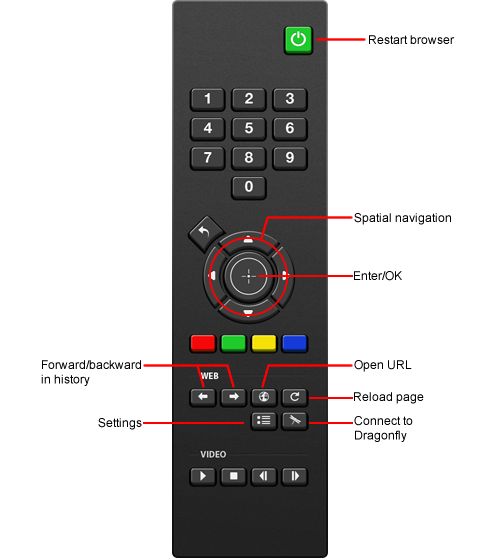
Developing web projects with the Opera TV Emulator
With the Opera TV Emulator you can test any Web pages stored on your local computer. Firstly, you should share your working folder with the TV Emulator Linux system:
- Make sure the TV Emulator is turned off
- Open the Virtual Box application
- Right-click on TV Emulator and select Settings...
- From list on the left, choose Shared Folders
- Click + and add folder you would like to share (select auto-mount)
- Confirm your changes
- Start the TV Emulator
To access your project files, type the following link in the TV Emulator: file://localhost/mydata/sf_foldername, where foldername is the name of the folder you set to be shared.
Supported media formats
The following audio/video media formats are supported by the Opera TV Emulator:
| Type | Media | Container | Video codec | Audio codec |
|---|---|---|---|---|
| Video | MPEG-2 | MPG | MPEG-2 (H.262) | 224kbps(max) |
| AVC | MP4 | MPEG-4 AVC(H.264) MainProfile/HighProfile Level 4(max) |
AAC-LC Mono/Stereo 320kbps(max) 32kHz/44.1kHz/48kHz |
|
| HE-AAC Mono/Stereo 320kbps(max) 32kHz/44.1kHz/48kHz |
||||
| WMV-9 | ASF | WMV-9 | WMA-9 | |
Audio |
MP3 | MP3 | - | MPEG-1/MPEG-2 Audio Layer 3 Mono/Stereo 320kbps(max) 32kHz/44.1kHz/48kHz |
| AAC-LC | MP4 | - | AAC-LC Mono/Stereo 320kbps(max) 32kHz/44.1kHz/48kHz |
|
| HE-AAC | MP4 | - | HE-AAC Mono/Stereo 320kbps(max) 32kHz/44.1kHz/48kHz |
|
| WMA-9 | ASF | - | WMA-9 |
Installing the H.264 decoder
Distribution of the H.264 decoder is blocked by proprietary rights, so appropriate libraries are not provided in the TV Emulator package. Nevertheless, the license permits the end user to use the decoder for free. The steps below describe one possible way of installing this decoder.
- Create shared folder with the name plugins. See the Installation Guide for information on how to share a folder.
- Download the gstreamer0.10-x264 package and the libx264 package for i386 platform.
- Unpack both packages (for Windows you can use an application such as 7zip to do that).
- From both packages, copy all files from the /usr/lib folder to your plugins folder.
- Launch the TV Emulator.
You should now be able to watch all H.264 media.
About this article
| Published in | Dev.Opera |
|---|---|
| Date | November 21, 2011 |
| Author | Opera Software |
| Tags | emulator, tv |
| Original | Internet Archive |