
Opera's lightweight themes
Introduction
Opera 12 brings us many improvements, including updates to the Opera skinning system. For a start, the updates are so extensive that we have renamed skins to themes. There is a new lightweight system (internally called personas), which sits on top of the default Opera theme and makes simple customisations much easier to achieve. In this article we'll take a look at how this lightweight system works.
How does it work?
These new lightweight themes work in the same way as the existing themes system: they are packaged in a ZIP file, and contain two things, assets that you want to use in your theme, and a persona.ini file. The .ini file is how Opera recognises the ZIP file as a theme — when it encounters such a file (eg by following a link to it), it will automatically install the theme: a nice simple process. The theme applies is applied on top of the default Opera skin for your OS.
The persona.ini file contains a number of sections, each begun by a heading contained in square brackets, like so: [Options]. Each of these sections contains information to specify different parts of the theme, such as a custom background image, etc. the key here is simplicity — you can still use the old heavyweight theme system to create a full customisation if you want, but a lot of people just want to do something simple, and don't want to risk breaking the UI. The lightweight system is much easier to use. In the Opera 12 alpha we are only allowing you to customise the background image, colorization, and which major parts of the UI the image shows through. More options may be added in the future.
In the next section we will run through a complete theme example to show how this all works.
Walking through an example
To try out an example theme, install the Opera 12 alpha and point it at our Opera themes page. Try clicking on one of the examples and you'll notice that your browser changes its style to look something like the following:
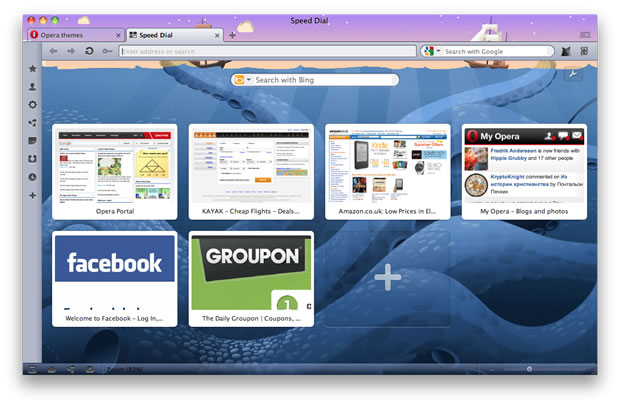
Figure 1: An example theme in action.
You will find this theme listed along with any other themes you may have installed, in Tools > Appearance. From these you can choose to select between the different ones you've previously installed, or delete them. You can also make a theme available from the appearance dialog by placing it in the skin directory of your Opera profile. You can find this in [home folder]/Library/Opera on Mac and Linux, and C:\users\[user]\AppData\Roaming\Opera\Opera on Windows.
If you go to the above link and instead choose to Save Linked Content As..., then unzip it, you'll find assets, plus the personas.ini file, which contains the following sections:
# This file describes a test persona for the Opera browser. Not meant for redistribution.This is a comment, to give some background information about the theme. You can put comments anywhere you like in the file, as long as they are written on a separate line and started with a hash/pound symbol (#).
[Info]
Name                          = The Natural History of Norway
Author                        = Opera Software
Version                       = 1
Preview Image                 =
The [Info] section is quite self explanatory. The Name is the name of the theme, as it will appear in the Appearance dialog, on the upcoming Opera themes catalog, etc. The [Author] is the author of the theme, and [Version] should always be set as 1 (this means "version 1 of the lightweight theme system"). Preview Image is supposed to provide a preview for catalogs, etc., but is not currently being used.
[Options]
Colorize Color                = #3e6da9
An optional section: if specified, Colorize Color overrides the current colorization with a specific color tint — we colorize with the average colour of the image. Some of the themes, when installed, will add a colouration/tint over the top of the theme.
[Window Image]
Type                          = BestFit
Tile Center                   = Kraken.jpg
Colorize                      = 0
The [Window Image] section controls settings of the whole browser window. The Type is set to BestFit to indicate that Opera will fit the image in the best way it can (the other most common setting is BoxTile). The Tile Center line specifies the path to the image that will be used as a custom background image for the theme. Colorize = 0 specifies that you don't want the custom image colorized in the same way as the rest of the UI. Set it to 1 if you do.
[Clear elements]
Speed Dial Widget Blank Skin  = 1
Speed Dial Widget Skin        = 1
Window Skin                   = 1
Document Window Skin          = 1
Setting these properties all to 1 will cause the background image to shine through the speed dial. If they are missing or set to 0, it won't.
As I said earlier, at this stage you can't do anything else inside lightweight themes, although we may add more options later. This sounds limiting, you might say, but this is deliberate — themes are for applying small changes. If you want to make more extensive changes, you'll still use the full theming system. But this new way is a lot simpler to write and apply.
Installing and sharing a theme
When you've created a theme, you'll want to share it with others, so they can see your handiwork. To do this, the best way currently is to upload it to a web server somewhere (a full theme catalog will be available soon on addons.opera.com/themes along with a mechanism to upload your own, but for now you'll just find some example themes). If you upload it to your own web server, you'll need to make sure you serve it with the correct mime type, otherwise it won't install. To do this, put the following inside an .htaccess file in the same directory (for an Apache-based server, of course — other server types will require a different but equivalent fix):
<files *.zip>
  ForceType application/x-opera-configuration-skin
</files>
Summary
I hope you found our walkthrough of Opera lightweight themes helpful. Let us know what you think!
About this article
| Published in | Dev.Opera |
|---|---|
| Date | October 13, 2011 |
| Author | Chris Mills |
| Tags | skin, opera, customize, persona, customise, theme |
| Original | Internet Archive |