
Your first widget - Opera Developer Community
Creating an Opera Widget is quick and painless. This tutorial will take you through all the steps in making your first widget.
Before you get started
OK, you can’t wait to get started? Please bear with us for a moment while we run through a few basics.
What is a widget?
A widget is a small Web application, and making a widget is just like making a Web page, except it functions like an application and lives directly on your desktop.
Opera can install and open these widgets, and show them directly on the user’s desktop. Widgets are so-called chromeless applications and will display them without regular user interface elements like the normal browser controls, such as a back button or address field. When run, a widget may appear like the clock widget below:

An Opera Widget is a regular zip file, renamed to use the extension .wdgt. All the files related to your widget should be stored inside the widget file. A typical widget contains the following elements:
- A widget configuration file. This file holds information about your widget, including its size, name, author, and security information.
- HTML document. This document is the skeleton of the widget. Widgets can also be created using content that Opera handles natively, such as SVG or XML files.
- Images.
- JavaScript files.
- Stylesheets.
What will I need to create and deploy an Opera Widget?
To create an Opera Widget, you will need the same as you need for regular Web development:
- A basic understanding of Web technologies.
- A text editor or Web IDE that allows creation of JavaScript, HTML, and CSS files.
- A tool for creating and maintaining .zip archives.
- Somewhere to publish it. The Opera Widgets site already offers to host your widget, and expose it to thousands of widget users.
How are widgets related to Web pages?
We keep saying widgets are just like regular Web pages, but there are a few differences:
- The widget lives outside the Web browser, directly on the user's desktop without any of the regular user interface elements, such as title bars.
- The security restrictions of a widget are different from regular Web pages, enabling you to create a widget that will simultaneously interface with different Web services living on different Web servers.
- Widgets have a
widgetobject available from JavaScript that allows an author to access widget-specific functionality. - A widget has access to a permanent storage for its settings and downloaded data. This mechanism is similar to cookies, but the storage capacity is larger than for cookies, and does not automatically expire after a given time.
- Widgets typically have several views available in the same document. One of these views is what a widget user typically sees when using the widget, and another view is where you provide the user with configuration options. Switching between these views is done by performing transitions on the views, using regular JavaScript+CSS methods.
- By default, a widget is draggable, so the user can move it around on the screen simply by clicking and dragging the widget. If this behavior is not desired for parts of a widget, the author will have to specify control regions where the widget does not respond to dragging.
- By default, the widget background color is transparent, to allow for widgets that are see-through on the desktop. The transparent area of a widget does not respond to mouse events, but instead passes them through to any underlying application.
The Widget Workshop: Hello World!
OK, now you know the background. Let's start coding. Our first widget will be the simplest of all widgets, the "Hello World!" widget. A widget requires at least two files:
- The main document.
- The widget configuration file.
More advanced widgets may require external CSS and JavaScript files. We will start this tutorial by creating a minimal widget, and then expand the widget into a complete widget with style and a configuration view.
Creating the main document
First, create an HTML document named index.html. This document will be what your users will see when they first load the widget.
<!DOCTYPE html>

<html>
  <head>
    <title>Hello World!</title>
  </head>
  <body>
    <p>Hello World!</p>

  </body>
</html>
Creating the widget configuration file
Next, in order to be able to run our newly created widget file, we will need to create an application definition file, named config.xml. The file holds information on certain properties of the widget. Some properties of this simple xml file are required:
- The widget's name.
- The widget's dimensions. This is the maximum viewable area for a widget.
- Author information. Feel free to brag.
- A unique ID for the widget. This ID is made up of three parts: A hostname, a path and a revision date on the
YYYY-MMformat (you can also useYYYY-MM-DDDDif you plan on revising the widget more than once a month). - Security information that provides the widget user with information about which domains the widget will be contacting. Even if this security information is optional, any widget that contacts a third-party service is highly encouraged to include this, since this will establish a trust relationship between you, the widget author, and the widget user.
The config.xml for our Hello World! widget should look like this:
<?xml version="1.0" encoding="utf-8"?>

<widget>
  <widgetname>Hello World!</widgetname>
  <description>
    This is the very first widget written!
  </description>
  <width>473</width>

  <height>300</height>
  <author>
    <name>John Doe</name>
    <link>http://acme-widget.example.com</link>

    <organization>Acme Examples, inc.</organization>
  </author>
  <id>
    <host>example.com</host>
    <name>HelloWorld</name>

    <revised>2006-01</revised>
  </id>
</widget>
Here is a specification for config.xml.
Running your widget for the first time
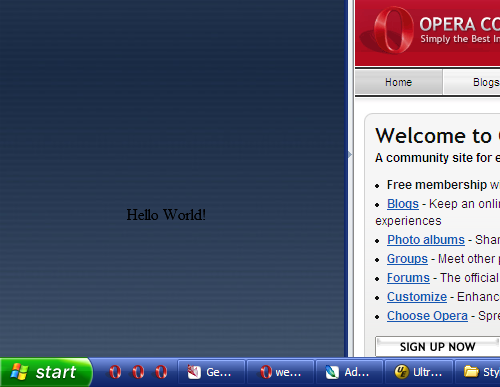
During development, widgets can be opened by opening the config.xml file in the browser, either by dragging it from a file manager, or by using the File > Open menu. When you start this widget, you should see:
Adding style
In its current form, the widget's default background color is transparent, and uses regular browser defaults for styling. Ugh! Let's spice it up with a little CSS and additional markup.
First, we'll add the stylesheet reference to the widget document itself. We'll also alter the document, so it is better suited for styling:
<!DOCTYPE html>

<html>
  <head>
    <title>Hello World!</title>
    <link rel="stylesheet" type="text/css" href="helloworld.css">
  </head>
  <body>

    <div id="frontview">
      <div class="top">
        <p>Hello World!</p>
      </div>
      <div class="bottom">

      </div>
    </div>
  </body>
</html>
Now, let's proceed to create the helloworld.css stylesheet. The images referenced in this file can be found in a separate archive. Unpack this archive in the widget working folder, and ensure that all images are kept in the images folder.
body {
  width: 454px;
  margin: 0;
  padding: 0;
}

div.top {
  padding: 45px 0 0 45px;
  width: 454px;
  height: 100px;
  background: transparent url(images/hw_top.png) scroll no-repeat top left;
}

div.bottom {
  width: 454px;
  position: relative;
  height: 36px;
  vertical-align: top;
  background: transparent url(images/hw_bottom.png) scroll no-repeat top left;
}

div.top p {
  margin: 25px 0;
  padding: 0;
  font-size: 24px;
  text-align: center;
  width: 354px;
}
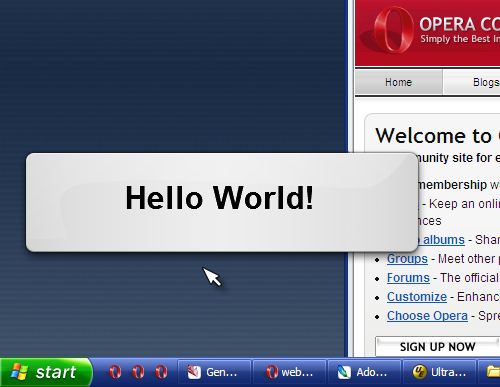
After this styling is applied, our widget no longer looks bland and unstyled. Instead it will have a nice background and shadows:
A note on widget style
We're not the fashion police, but Opera-designed widgets follow a set of simple style guidelines so that they appear uniform. Widgets authors are encouraged to examine the various widgets on the Opera Widgets site, and try to make their widgets in the same style as these. The benefit of creating widgets in the same style is that widgets become more recognizable to the end user.
Adding interactivity
We now have a fully working widget, but it does not offer any interactivity or any way of configuring the widget. We will now add a configuration button. When the configuration (or flip) button is added, the widget main document should look like this:
<!DOCTYPE html>

<html>
  <head>
    <title>Hello World!</title>
    <link rel="stylesheet" type="text/css" href="helloworld.css">
    <script type="text/javascript" src="helloworld.js"></script>

  </head>
  <body>
    <div id="frontview">
      <div class="top">
        <p id="hellotext">Hello World!</p>

      </div>
      <div class="bottom">
        <p class="flipbutton" id="flipfront"></p>
      </div>
    </div>
    <div id="configview">

      <div class="top">
        <p><label>Text to display</label>
        <input id="frontlabel" type="text" size="25"></p>
      </div>
      <div class="bottom">

        <p class="flipbutton" id="flipback"></p>
      </div>
    </div>
  </body>
</html>
The major additions here are:
- The script that contains behavior for flipping from the main view to the configuration view.
- The addition of a button for flipping between the front and back of a widget.
- A configuration view.
- Modifications to the style sheet.
Styling the configuration
We'll need to add style rules for the widget's configuration view, and the additions we will be making are as follows:
/* By default, hide the configuration */
div#configview {
  display: none;
}

/* Add the width of the configuration view */
div#frontview, div#configview {
  width: 454px;
}

/* Add some style to the paragraph holding the form label */
#configview div.top p {
  margin: 25px 0;
  padding: 0;
  font-size: 16px;
  text-align: center;
  width: 354px;
  vertical-align: middle;
}

/* Add a small margin to the form label */
#configview label {
  margin-right: 10px;
}
The flip button
In addition to this, the CSS file for the widget also defines some additional style rules. First, we add styles for the flip button:
body:hover .flipbutton {
  opacity: 0.3;
}

body .flipbutton:hover {
  opacity: 1.0;
}

body .flipbutton:active {
  opacity: 1.0;
  background-position: bottom left;
}

.flipbutton {
  opacity: 0.0;
  overflow: hidden;
  height: 16px;
  width: 24px;
  position: absolute;
  background: transparent url(images/flip.png) scroll no-repeat 0 0;
  background-position: top left;
  right: 45px;
  bottom: 25px;
  margin: 0;
  padding: 0;
}
We're still not the fashion police, but it is strongly recommended that widgets using a configuration view use them in the same way as illustrated in this tutorial:
- The flip button should be invisible when the mouse is not over the widget.
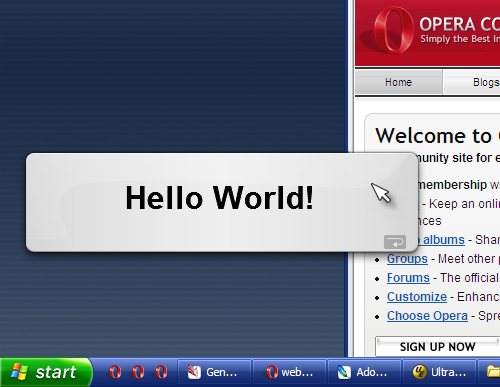
- It should become visible with an opacity of 0.3 when a user mouses over the widget.
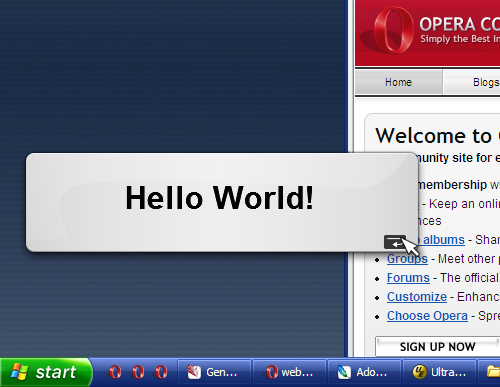
- When users hover the flip button, it should have an opacity of 1.0.
- When users click the flip button, the button should change to the click state (the lower half of the button).
- The flip button should be in the lower right corner of the widget.
Our widget, when we hover the widget itself:
Our widget, when we hover the flip button:
Adding behavior to the flip button
The next step is to add behavior to the flip button, so that the widget shows the other side, when the flip button is clicked or activated. This behavior is contained in some simple JavaScript, held in the file helloworld.js. The contents of the file is as follows:
// Execute the script on load
window.addEventListener('load',function(ev){

  // add behavior to the flip button on the front side
  document.getElementById('flipfront').addEventListener('click',function(ev){
    flipWidget("back");
  }, false);

  // add behavior to the flip button on the front side
  document.getElementById('flipback').addEventListener('click',function(ev){
    flipWidget("front");
  }, false);

  // add a change handler so that the widget shows whatever we input into the
  // widget front
  document.getElementById('frontlabel').addEventListener('keypress',function(ev){
    if (ev.keyCode == 13){
      flipWidget("front")
    };
  },false);

  // set the contents of the text field to the initial value
  document.getElementById('frontlabel').setAttribute('value', document.getElementById('hellotext').textContent);
},false);

// Perform the flipping of the widget
function flipWidget(to){
  switch (to) {
    case "back":
      document.getElementById('frontview').style.display = "none";
      document.getElementById('configview').style.display = "block";
      break;
    case "front":
      document.getElementById('hellotext').textContent = document.getElementById('frontlabel').value;
      document.getElementById('configview').style.display = "none";
      document.getElementById('frontview').style.display = "block";
      break;
    default:
      // do nothing
      break;
  }
}
When we now run our widget, and hover it with the mouse, a "flip" button appears in the lower right corner. When you click this button, the widget is changed, so that the reverse side of the widget is shown. This reverse side shows a text input field, where the user can alter the text on the main view of the widget. When this is done, this is how the widget will appear to the user:
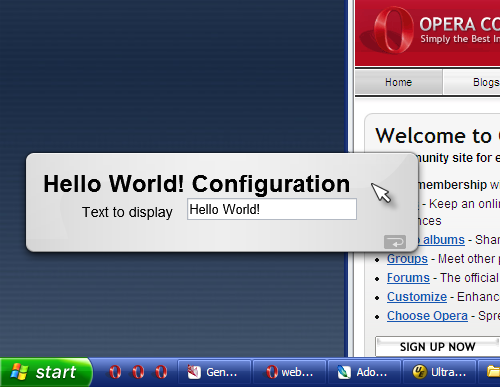
Congratulations! You have just finished your first Opera Widget. Now you can move on to personalize this widget, or create and deploy your own widgets. If you would like to examine a complete copy, you can download the Hello World! widget.
About this article
| Published in | Dev.Opera |
|---|---|
| Date | November 13, 2006 |
| Author | Opera Software |
| Tags | widget |
| Original | Internet Archive |