
Developers › Opera Dragonfly blog
Watches, Network overrides and more
We have two more features for you as we move ever closer to Opera Dragonfly 1.0 release.
Watch expressions
The first is the Watches feature in the JavaScript Debugger. A watch can monitor a user defined variable or expression while the web page runs. The expression will be evaluated and the result will be shown. As you step through the code it will show the result at that moment in time. A watch expression can be as simple as a variable name, or as complex as any valid JavaScript expressions.
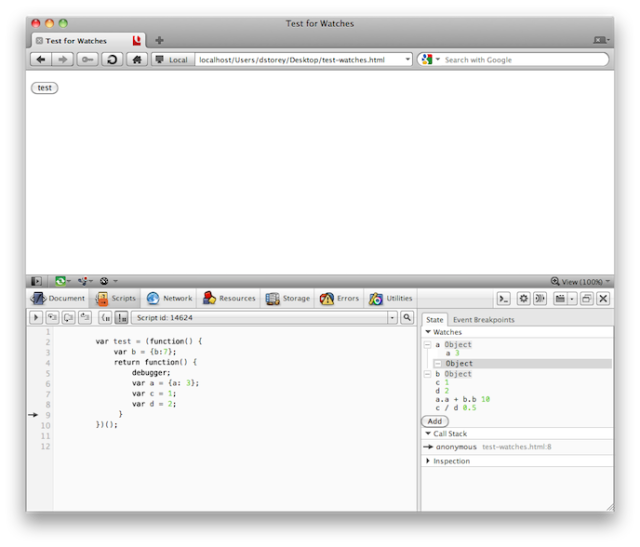
To test this feature out, load this Watches test file in Opera. Switch to the state
tab of the JavaScript debugger and add the following expressions to the Watches panel:
- a
- b
- c
- d
- a.a + b.b
- c / d
Enter each expression you wish to add, and click the add
button to submit that watch. After you've added the watch expressions, click the test
button in the web page. This will run the JS code until the debugger statement is reached. You’ll notice that most of the expressions will switch from error to undefined. As the b object has already been defined at this stage, it will state that it is of type Object. Expanding this will show it has one property (b) with the value of 7. Click the Step Into button, and watch as you step through each statement values get assigned to the variables being watched. Once the relevant variables are assigned a value you’ll see the expressions such as a.a + b.b will return the result of the executed expression. It this case it will return 10. As you can imagine, this feature can be very useful when trying to understand the current state of your application.
Globally override HTTP headers
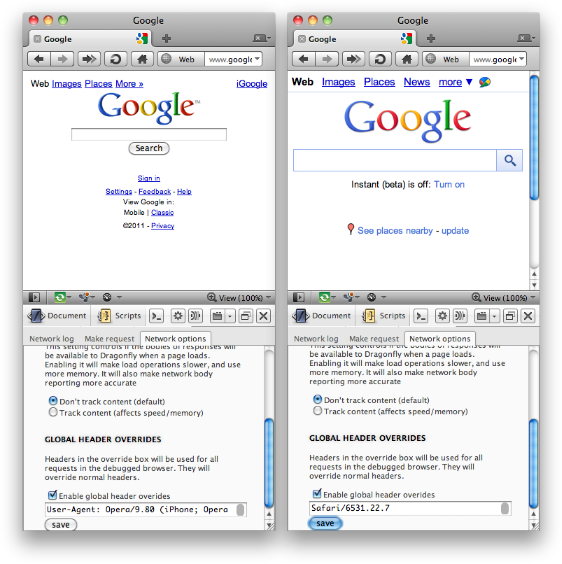
It is now possible to globally override any HTTP header in Opera Dragonfly. Switch to the Network Inspector and then the Network options tab. There you can find an option to enable global network overrides. In the image above I've compared the result when overriding the user-agent header to Opera Mini on iPhone on the left and Safari on iPhone on the right. This shows the results of browser sniffing. In the first Opera gets a basic mobile site, and in the second it gets an advanced mobile app with features such as Google Instant. The global overrides apply to all network requests for the current session. As you can imagine, this is very useful for testing mobile optimised sites, or testing if pesky sites that block Opera actually work when the discrimination is bypassed.
Remote debug polish
We’ve also added some help text when the remote debug connection dialog is open. This steps the user through what needs to be done in Opera Dragonfly and the mobile device to connect the two.
Next steps
We’re gearing up to moving from the implementation phase to the polishing and bug fixing phase. In the near future we will stop working on new features and start getting Opera Dragonfly ready for the first stable release. In this phase we will fix critical bugs, along with polishing the UI to fix inconstancies and refine the look and feel. Once Dragonfly 1.0 is released we will move back to feature development along with further refining the currently supported features.
We hope you like the current build, and feedback is welcome as always.
Readers' comments 28
Left under the original article, as archived.
About this article
| Published in | Opera Dragonfly blog |
|---|---|
| Date | February 14, 2011 |
| Author | David Storey |
| Tags | HTTP, Opera Dragonfly, Watches |
| Original | Internet Archive |
A.shunMonday, February 14, 2011 4:58:53 PM
setMonday, February 14, 2011 5:17:21 PM
Caching behaviour
This setting controls how caching works in Opera. When caching is disableD
Also that Network Options page could use some bottom padding/margins.
Martin KadlecMonday, February 14, 2011 5:19:58 PM
Martin KadlecMonday, February 14, 2011 5:24:49 PM
Martin KadlecMonday, February 14, 2011 5:28:50 PM
ouzowtfMonday, February 14, 2011 5:30:12 PM
artmilMonday, February 14, 2011 8:10:02 PM
JanGenMonday, February 14, 2011 8:33:31 PM
Nice feature!
Even better if we can choose from a list of predefined UA, Opera Mini, Google Bot, Yahoo slurp etc and/or save our own in cache.
Thx, Dragonfly is getting the best debugger!!
Constantine VesnaMonday, February 14, 2011 9:07:46 PM
Spadar ShutMonday, February 14, 2011 9:30:14 PM
And in the current implementation having clicked the Remote debug button one has to move the cursor half the screen to reach the Apply button, which is really annoying.
Rune F. HalvorsenMonday, February 14, 2011 10:03:46 PM
@JanGen: Yeah, we want to have some presets there. Not sure we will add them for 1.0, but we will get them.
David StoreyTuesday, February 15, 2011 12:05:26 AM
Originally posted by BS-Harou:
You can remove a watch by right clicking and selecting delete. The empty watch issue sounds like a bug. I’ll file it.
David StoreyTuesday, February 15, 2011 12:26:35 AM
Originally posted by BS-Harou:
Thanks. I've seen this issue before but was never able to spot how to reproduce it. It seems once you switch from Scripts to another mode and back again it gets stuck on scripts. I've reported it as DFL-1602
d4rkn1ghtTuesday, February 15, 2011 3:38:38 AM
sirnh1Tuesday, February 15, 2011 8:05:26 AM
metudeTuesday, February 15, 2011 9:59:02 AM
Is it removed?
Stylesheet files in old dragonfly: http://prntscr.com/1k7z5
David HåsätherTuesday, February 15, 2011 10:25:46 AM
Originally posted by sirnh1:
Yes, this is on my list for today actually. You will need to select some text, and then an "Add watch" option will be appear in the context menu.Originally posted by metude:
Yep, this has been removed.David StoreyTuesday, February 15, 2011 10:39:12 AM
Originally posted by metude:
While as David said this has been removed, these were just the generated style sheets as seen internally by Opera. They didn't add too much value over what can be seen in the Styles panel. However to see the original stylesheet as the author wrote it, you can switch to the Resources tab and select the CSS files from there.
metudeTuesday, February 15, 2011 11:00:17 AM
Originally posted by dstorey:
I didn't like this.
David StoreyTuesday, February 15, 2011 12:56:51 PM
Originally posted by metude:
What is your specific use case you used it for which you miss now? I'm asking so we can look to optimise what we have to work for your use cases.
sirnh1Tuesday, February 15, 2011 1:26:58 PM
http://files.myopera.com/sirnh1/Browsers/Dragonfly/Dragon_network.png
Edit: Will it be possible that when you click on the name of the stylesheet (in the styles panel of the document tab) the css file will be opened in the resource panel?
Samed AyanTuesday, February 15, 2011 2:28:30 PM
David StoreyTuesday, February 15, 2011 4:49:04 PM
Originally posted by sirnh1:
There are no plans at the moment, but we will hopefully display the URLs in a more friendly space efficient way before final.
Originally posted by sirnh1:
Yes, this will be possible.
ouzowtfTuesday, February 15, 2011 5:28:21 PM
IllusionMHTuesday, February 15, 2011 8:55:03 PM
There is the same bug as in a previous build:
when you create new stylesheet and try to create some style like
you can see new errors in Errors tab.
Screenshot
metudeTuesday, February 15, 2011 9:41:06 PM
In old dragonly, i was clicking main.css in right and with this way i can see easily all stylesheet files.
And also with new df i can't see inline codes in resources tab.
Sorry for my weak English.
Christian KrebsTuesday, February 15, 2011 11:16:01 PM
@metude the plan is to have filters in the resource tab, one of them would e.g. be to show all resources which define style. Though we will probably not have that in Dragonfly 1.0.
metudeWednesday, February 16, 2011 1:33:45 PM
Originally posted by aleto:
Too bad. But still i like new dragonfly more than older one.